How to Add Accents on Any Device A Simple Guide
Typing accents correctly isn't just a technical skill; it's a huge step toward real fluency. The difference between the Spanish año (year) and ano (anus) is a classic—and slightly terrifying—example of why this stuff matters. Getting it wrong can lead to some seriously embarrassing mistakes, but getting it right deepens your entire grasp of the language.
This guide will break down the simplest ways to type accented letters, no matter what device you're using.
In a hurry? Use our free online accent keyboards to click and copy the letter you need: all accented letters, or the Spanish, French and German keyboards.
Why Mastering Accents Is a Game Changer for Language Learners
Learning to type accents is way more than a keyboard trick. It’s about communicating with precision and showing respect for the language you’re learning. When you take that extra second to type café instead of cafe, you’re signaling a much deeper commitment.
It’s a small effort, but it instantly elevates your writing from "learner" to "authentic." This is how you build real connections with native speakers.
Embracing this skill pays off in a few key ways that go way beyond just spelling:
- You'll Avoid Awkward Mistakes: Like we saw with the Spanish año, one little mark can completely flip a word's meaning. Using accents correctly ensures your message is clear and helps you dodge those face-palm moments.
- Your Pronunciation Will Improve: Seeing and typing words with the right accents constantly reinforces how they're supposed to sound. It's a powerful visual cue that helps lock in proper pronunciation as you learn.
- It Shows You Genuinely Care: Using a language's diacritics correctly is a sign of respect. It shows you value the nuances and are dedicated to getting it right.
From Digital Tools to Deeper Connections
Thankfully, digital learning has made practicing this skill easier than ever. The global market for language learning apps is absolutely exploding, jumping from USD 6.34 billion to a projected USD 24.39 billion by 2033.
This massive growth is fueled by learners using apps like PolyChat, which offers unlimited lessons in over 15 languages where accents are non-negotiable. You can see the full market research from Straits Research for a deeper dive into the numbers.
The ability to type accents is what separates a casual learner from someone who can truly communicate. It’s the digital version of rolling your R's in Spanish or nailing the French U—it shows you’re making a real effort to speak the language as it’s meant to be spoken.
This skill is also critical for anyone creating content. For instance, knowing how to create subtitles for videos for an international audience demands this kind of precision.
Ultimately, learning to add accents is what gives you the confidence to text a friend in French, write a professional email in German, or just engage with the world more genuinely.
Typing Accents on Your Desktop: Windows and macOS
Getting accent marks right on your computer is far simpler than most people think. The best method really comes down to your personal workflow. Whether you're a Windows power user or a dedicated Mac fan, there’s a seamless way to integrate accents into your daily typing habits without breaking your flow.
The key is finding a technique that feels less like a chore and more like a natural extension of your keyboard.
For most people using Windows, the most efficient long-term solution is switching your keyboard layout to US-International. This might sound complicated, but it's just a simple tweak in your language settings that unlocks a world of characters without needing to memorize a bunch of codes.
Once it's enabled, your keyboard works almost identically for English, but with one key difference. Certain punctuation marks, like the apostrophe (') and quotation mark ("), become "dead keys." This just means when you press one, nothing happens until you press the next key.
- To type é (like in the French word café), you press the apostrophe key ', release it, and then type e.
- To type ü (common in German, like über), you press the quotation mark key ", release it, and then type u.
This method quickly becomes second nature, making you much faster than someone hunting for symbols in a character map.
Mastering macOS Accent Shortcuts
Apple has made typing accents incredibly intuitive on macOS. The most straightforward approach is the press-and-hold method. It's perfect for when you're just starting out or only need an accented character every now and then.
Just press and hold the letter you want to accent. If you hold down the 'e' key, a small pop-up menu will appear right over the character, showing all its variations: é, è, ê, ë, ē, and more. Each option is numbered, so you can either click your choice or just press the corresponding number key.
For those who type quickly and don't want to pause, there's an even faster way using the Option key. This method feels a lot like the US-International layout on Windows and is a favorite among fluent typists.
For language learners, mastering keyboard shortcuts is a small investment that pays huge dividends in fluency. The less you have to interrupt your train of thought to find a character, the more natural and immersive your writing practice becomes.
Here’s a quick rundown of how it works with the Option key:
- For an acute accent (é): Press Option + e simultaneously, then release and type the letter you want to accent (like 'a' for á).
- For a grave accent (è): Press Option + ` (the backtick key, usually near the '1' key), then release and type the vowel.
- For a circumflex (ê): Press Option + i, then release and type the vowel.
- For an umlaut (ü): Press Option + u, then release and type the vowel.
- For a tilde (ñ): Press Option + n, then release and type 'n'.
This infographic highlights why taking a moment to learn these methods is so important for effective communication.
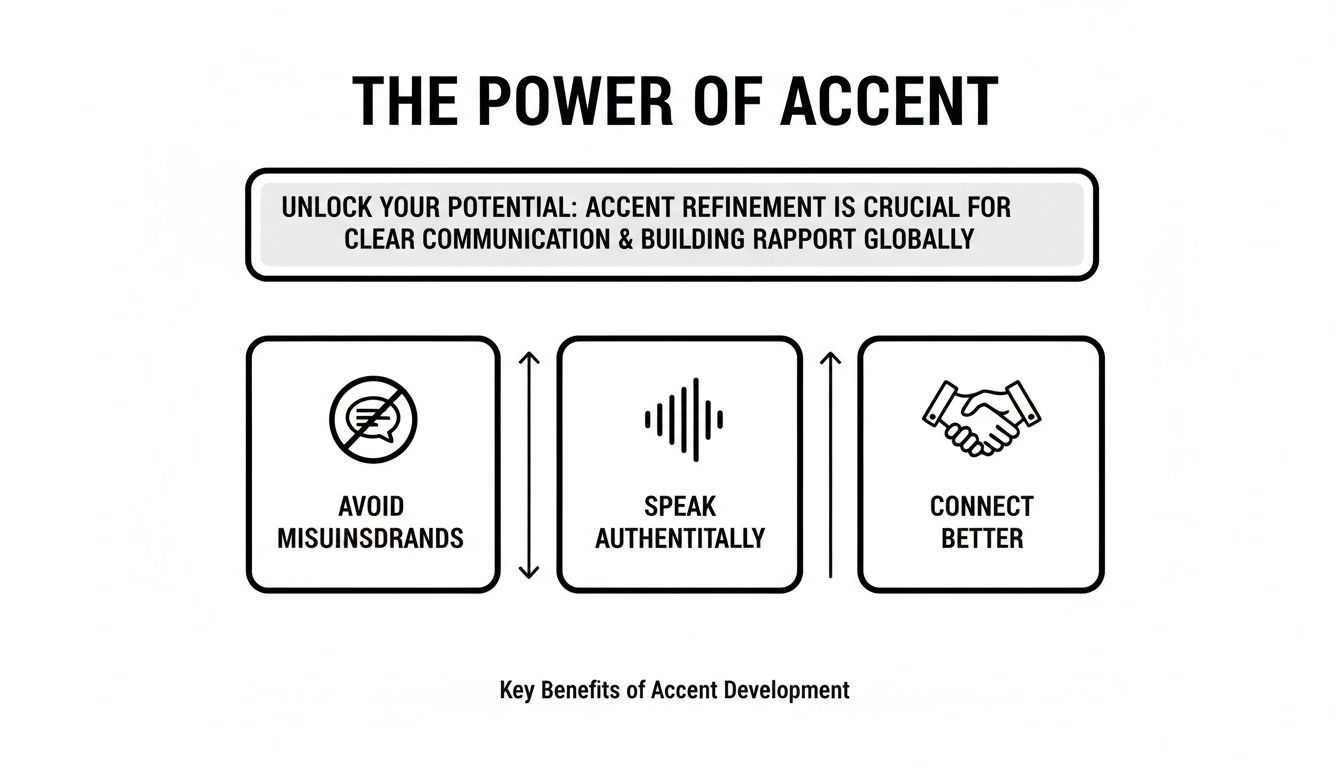
As you can see, using proper accents helps you avoid communication errors, speak more authentically, and ultimately build stronger connections.
Common Accent Shortcuts for Windows and macOS
To make things easier, here’s a quick reference table comparing the most common shortcuts for both systems. This should help you get up to speed in no time.
| Accent Character | Windows Shortcut (US-International) | macOS Shortcut (Option Key) |
|---|---|---|
| é (acute) | ' then e | Option + e, then e |
| è (grave) | ` then e | Option + \``, then e` |
| ê (circumflex) | ^ then e | Option + i, then e |
| ü (umlaut) | " then u | Option + u, then u |
| ñ (tilde) | ~ then n | Option + n, then n |
Once you get a feel for the logic, you can apply these patterns to almost any vowel you need. It really does become muscle memory after a bit of practice.
What About Classic ALT Codes?
For long-time Windows users, ALT codes might still feel familiar. This is the old-school method of holding down the ALT key while typing a specific four-digit number code on your keyboard's numeric keypad. For instance, ALT + 0233 will produce an é.
But this method has a couple of major drawbacks. First, it requires a keyboard with a dedicated number pad—something most modern laptops don't have. Second, it forces you to memorize dozens of arbitrary codes.
While useful in a pinch, it’s far less practical for regular use compared to the slicker US-International keyboard layout.
Adding Accents Seamlessly on Mobile: iOS and Android
For most of us learning a new language, our smartphone is everything. It’s our classroom, our dictionary, and our main line of communication with native speakers. That’s why knowing how to add accents isn't just a minor detail—it's essential for sounding authentic.
Luckily, both iOS and Android have a brilliant, universal trick built right in.
The absolute quickest way to type a single accented character is the press-and-hold gesture. It’s so intuitive you might have already discovered it by accident.
Just tap and hold your finger on a letter like 'e' or 'a'. A little pop-up menu will appear right above your finger, showing every variation available—from à and á to ä and â. All you do is slide your finger to the character you want and let go.
This little move is perfect when you just need to drop a quick accent into a word like résumé or piñata without breaking your typing rhythm.
For Serious Learners: Add a Dedicated Language Keyboard
If you're constantly switching between languages, the press-and-hold trick can start to feel a bit clumsy. A much better way to work is to add a dedicated keyboard for each language you’re learning. This unlocks specialized layouts and predictive text that make typing feel way more natural.
Don't worry, this doesn't change your phone's system language. It just adds another keyboard to your toolkit, letting you switch between them with a single tap of the little globe icon.
Here’s the setup:
- On iOS: Head to
Settings>General>Keyboard>Keyboards>Add New Keyboard...and pick your language from the list. - On Android (using Gboard): With the keyboard open, tap the settings gear icon, then
Languages>Add Keyboard, and choose the one you need.
This one simple change makes a huge difference. You'll get immediate access to language-specific characters like the ñ in Spanish or the ç in French right on the main keyboard layout. Even better, it enables predictive text and autocorrect for that language, which helps you type faster and spot mistakes.
Adding a specific language keyboard is a total game-changer. Your phone actually starts thinking in that language, suggesting conjugated verbs and common phrases. It turns your device from a simple messaging tool into a powerful, dynamic practice partner.
Why Nailing Accents on Your Phone Matters
Mastering accents on your phone is a huge part of modern language learning. Getting the German umlauts right in a word like schön or the French circumflex in forêt is what separates someone who's just dabbling from someone who's having a real conversation.
It’s no surprise the language app market, valued at USD 21.06 billion, keeps exploding. A massive chunk of that is driven by self-learners who want flexible tools for exactly this kind of practice. You can learn more about how mobile tools are shaping language education and the trends driving this growth.
Platforms like PolyChat are built for this kind of on-the-go reinforcement, letting you practice what you’ve learned in realistic, bite-sized conversations.
For the Power Users: Advanced Typing for Polyglots and Pros
When you’re typing in another language all day, every day, the standard shortcuts start to feel slow. That tiny pause to press-and-hold a key or recall a specific key combo adds up, breaking your flow and slowing you down. For serious language learners and multilingual professionals, that friction is a real problem.
This is where the pro-level methods come in. These aren't just tricks; they're ways to bake accent typing directly into your muscle memory. The goal is to make typing an accented character just as fast and unconscious as typing any other letter.
Create Your Own Shortcuts with Text Replacement
One of the most powerful—and personal—ways to speed things up is with text replacement. This feature, built into nearly every modern operating system, lets you create your own custom shortcuts that automatically expand into whatever you want. In our case, an accented character.
For instance, you could create a rule where typing e` instantly becomes è. Or maybe for you, it's more logical that e- should become é. You decide what makes sense. The system adapts to you, not the other way around.
- On macOS: Head to
System Settings>Keyboard>Text Replacements. - On iOS/iPadOS: It's under
Settings>General>Keyboard>Text Replacement. - On Windows: While not built-in, the free app AutoHotkey is the gold standard for creating powerful custom scripts for this.
- On Android (Gboard): Go to
Settings>Dictionary>Personal Dictionaryto set up your shortcuts.
When you create shortcuts that feel logical to you, you're not just learning a system—you're building your own. It’s a huge leap forward for anyone who communicates in multiple languages on a daily basis.
This technique is a lifesaver for characters that don’t have intuitive built-in shortcuts. You can build a whole library of triggers that match how your brain works, turning you into a faster, more fluid typist. It's a killer strategy that works beautifully alongside the top language learning tools available today to create a truly personalized study environment.
Unleash the Compose Key on Linux
Linux users have a secret weapon: the Compose Key. It’s an incredibly intuitive system that lets you literally "build" special characters instead of memorizing cryptic codes. It feels completely natural once you get the hang of it.
First, you designate a key to act as your Compose key (the Right Alt or Caps Lock key are popular choices). After that, the process is simple. You just press the Compose key, then a sequence of two characters that logically make up the symbol.
- For é: Press
Compose, then', thene. (Apostrophe + e = é) - For ñ: Press
Compose, then~, thenn. (Tilde + n = ñ) - For ç: Press
Compose, then,, thenc. (Comma + c = ç)
The sheer elegance of the Compose key is its consistency. The sequences almost always make visual sense, making them far easier to remember than a bunch of random numbers.
Adding Accents for the Web with HTML Codes
If you're writing for the web—a blog post, website copy, or even just an HTML email—using HTML character codes is the most reliable way to make sure your accents show up correctly for everyone, on every browser. These codes, also known as HTML entities, are the universal language of the web for special characters.
Every character has a unique code. You've probably seen them before:
éproduces éñproduces ñüproduces üçproduces ç
You wouldn’t use these for chatting or writing a document, of course. But for anyone working in web development or content management, they are absolutely essential. Using them guarantees that your text renders exactly as you intended, with no risk of garbled characters ruining your work.
How to Actually Remember to Use Accents
Knowing the right keyboard shortcut is just the first step. The real challenge—the thing that separates a beginner from someone who can actually write fluently—is remembering when and where to use diacritics in the first place.
This is where you move beyond just typing and start using cognitive tools that make accents a natural, automatic part of your writing.

True mastery comes from consistent, targeted practice that burns the rules into your memory. Modern language learning apps are perfectly designed for this. For instance, a platform like PolyChat builds accent usage right into its core activities.
Conjugation drills and vocabulary builders require you to type words like the Spanish está with the correct accent. If you don't, the answer is marked wrong. This immediate feedback loop is exactly what you need to build accurate muscle memory.
Build Your Memory with Active Recall
Just staring at a list of words won't make the accents stick. That's passive learning. What you need is active recall, a method that forces your brain to retrieve the correct information on demand.
- Create Targeted Digital Flashcards: Don't just make generic vocabulary decks. Build sets focused on specific accent rules. For example, create a deck for French past participles that need the accent aigu (é), or one for Spanish words where the accent mark breaks a standard pronunciation rule.
- Use Spaced Repetition Systems (SRS): This is a scientifically-backed method for locking information into your long-term memory. By reviewing flashcards at increasing intervals, you commit them to memory far more effectively. You can learn more about how to implement spaced repetition for language learning in our detailed guide.
The goal isn't just to memorize individual words, but to internalize the underlying patterns of the language. When you understand why an accent is there, you'll remember to use it every single time. This turns a conscious typing task into an unconscious skill.
Immerse Yourself in the Language
Here's another powerful strategy: change the interface language on your devices—your phone, your laptop, everything—to your target language.
This simple switch creates an immersive environment where you constantly see accented words used correctly in context, from menu options to system notifications. It’s a low-effort way to get daily exposure that reinforces what you're learning.
Adding accents correctly transforms basic phrases into authentic expressions, a vital skill in a world where Spanish, for instance, is booming. While English currently holds the majority of online language learning revenue, Spanish is surging at an impressive growth rate, largely driven by bilingual demand. The overall app market is set to grow significantly, with mobile apps claiming the largest share for on-the-go accent drills. You can discover more insights about the online language learning market trends and its rapid expansion.
Common Questions About Typing Accents
Even with the best shortcuts, it's totally normal for questions and little roadblocks to pop up when you're learning how to type accents. It’s just part of the process. Below are some quick, clear answers to the most common snags language learners hit, designed to get you typing smoothly again in no time.
These are the questions we hear all the time from learners trying to make diacritics a part of their daily practice.
What Is the Easiest Way to Add Accents for Occasional Use?
For those moments when you just need a single accented character and don't want to mess with any settings, the simplest method on a desktop is the built-in character library.
On Windows, you can just search for the "Character Map" application. On a Mac, it's called the "Character Viewer." Both of these tools let you find pretty much any symbol imaginable, click to copy it, and then paste it right into your document. It requires zero setup or memorization.
On a phone or tablet, the press-and-hold gesture is unbeatable for pure speed and simplicity.
My Laptop Lacks a Number Pad for ALT Codes. What Now?
This is an incredibly common problem with modern laptops, making those old-school ALT codes pretty much useless. The best and most effective solution is to enable the US-International keyboard layout in your Windows settings. This is an absolute game-changer.
It works by turning certain keys (like the apostrophe or quotation mark) into "dead keys." You press the apostrophe key once, let go, and then press 'e' to create é. It feels a little weird for the first ten minutes, but it quickly becomes a fast, reliable method that completely replaces the need for a numpad.
Adopting the US-International keyboard layout is one of the single best adjustments a language learner can make on a Windows PC. It moves accent typing from a clumsy, code-based task to a fluid, intuitive part of your workflow.
Will Adding a New Keyboard Language Change My Entire Phone?
Absolutely not. This is a frequent worry, but adding a new keyboard language only affects the keyboard itself. Your phone’s system language, all your menus, and your notifications will stay exactly as they are.
You can easily switch between your keyboards by tapping the globe icon (on iOS) or a dedicated language key (on Android). This lets you type in English with your standard keyboard and then instantly flip over to a Spanish keyboard to get that ñ and take advantage of its helpful Spanish predictive text. For more ways to make your digital tools work for you, check out our guide on how to use a translator effectively for practice.
Are There Apps That Help Me Practice Using Accents?
Yes, and this is where modern language learning platforms really shine. The best apps are designed to make using accents a core part of learning, not just an afterthought you have to figure out on your own.
For instance, an app like PolyChat builds accent usage directly into its lessons. When a quiz asks you to conjugate a verb like the Spanish está (he/she is), you are required to include the accent to be marked correct. This kind of active recall is crucial for building lasting memory. The app’s personal dictionary also saves words with their proper diacritics, creating a perfect, personalized study list you can review anytime.
Ready to make accent practice a natural part of your learning routine? PolyChat offers unlimited, gamified lessons that reinforce correct spelling and usage in 17 languages. Download PolyChat today and start typing like a native!

Jean-Baptiste Bolh
Co-Founder
Applied AI